Install
QRiS runs as a plugin within QGIS, so you will need to install QGIS first. QGIS is free, open-source, and available on Windows, macOS, Linux, and Android. Two release types are available:
- Long Term Release (LTR): more stable, recommended for most users
- Experimental: newer features, less tested (we don't recommend these)
Starting with QRiS version 1.3 (August 2026), QRiS is now compatible with both QGIS 3.40 and later and QGIS 4! The planned schedule is to make QGIS 4 the LTR release at the end of October 2026. At that time, we will make QGIS 4 the recommended version for QRiS.
QGIS releases can vary significantly between versions and operating systems.
There are known issues with QRiS in QGIS 3.34. It is recommended to use QGIS 4.x, or if you insist on 3.x to use 3.40 or later for the best compatibility with QRiS.
How to Install QRiS
QRiS can be installed from the QGIS Plugin Manager. However, you must have the latest version of Riverscapes Viewer installed before installing QRiS. To install QRiS, follow these steps:
-
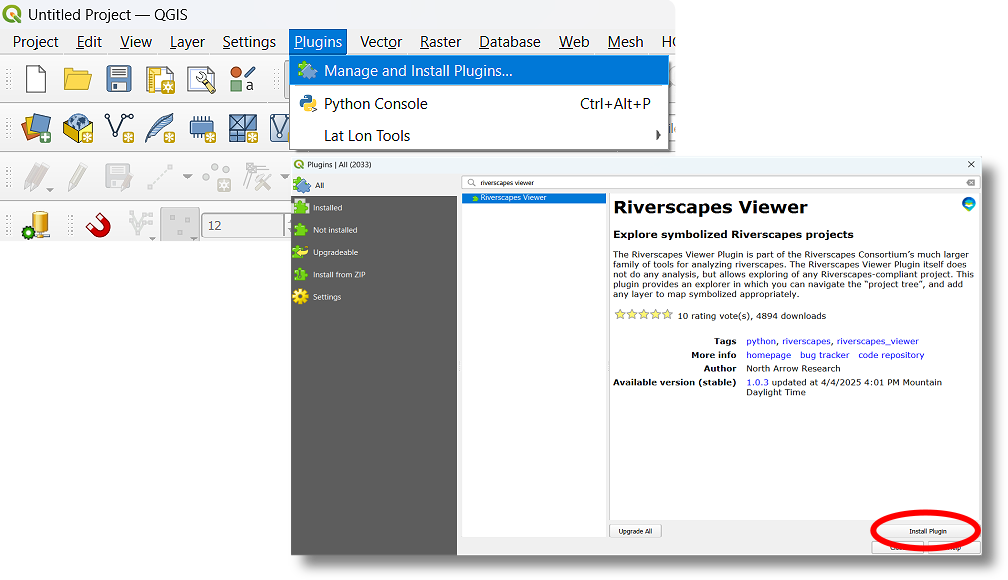
First, verify installation or install the Riverscapes Viewer Plugin:
-
In the QGIS menubar (top of page), go to
Plugins > Manage and Install Plugins. -
Search for Riverscapes Viewer and click the Install button (should take less than 30 seconds). This is a required dependency for QRiS.
-
-
Then, install QRiS:
-
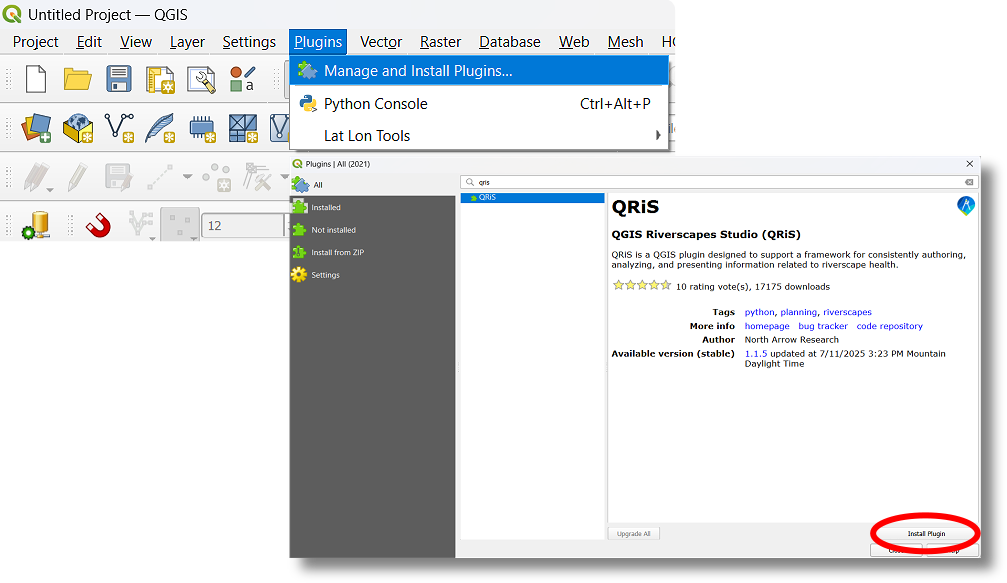
Go to the same
Plugins > Manage and Install Pluginsand search for QRiS. -
Click the Install button (should take less than 30 seconds).
-
Updating QRiS
You can update QRiS at any time after installation through the QGIS Plugin Manager. Here's how:
-
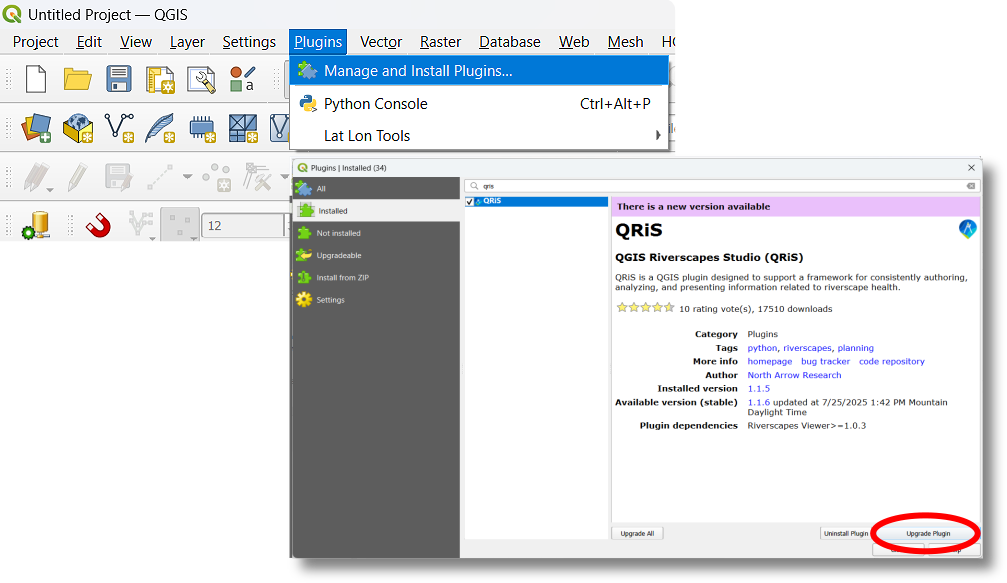
Go to
Plugins > Manage and Install Plugins. -
Select QRiS from the list of installed plugins.
-
Click the Update button.
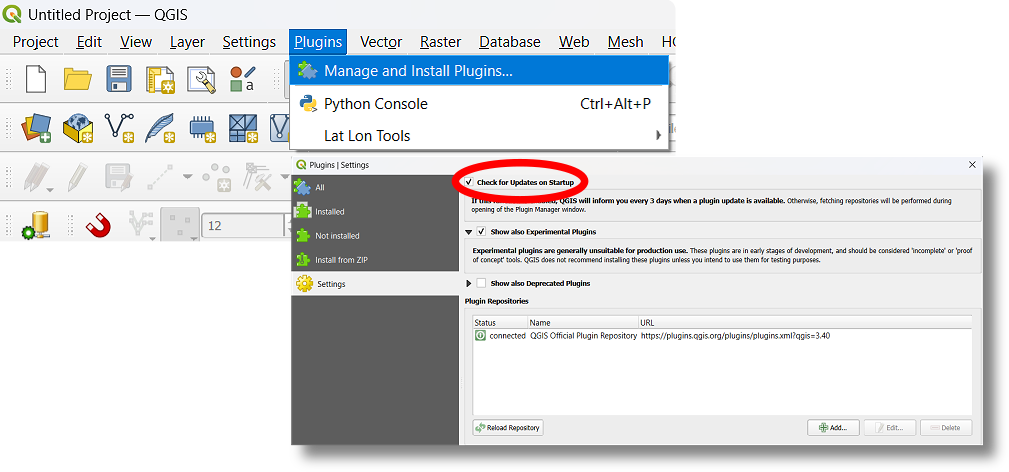
For automatic updates, you can configure the Plugin Manager settings to Check for Updates on Startup. When enabled:
-
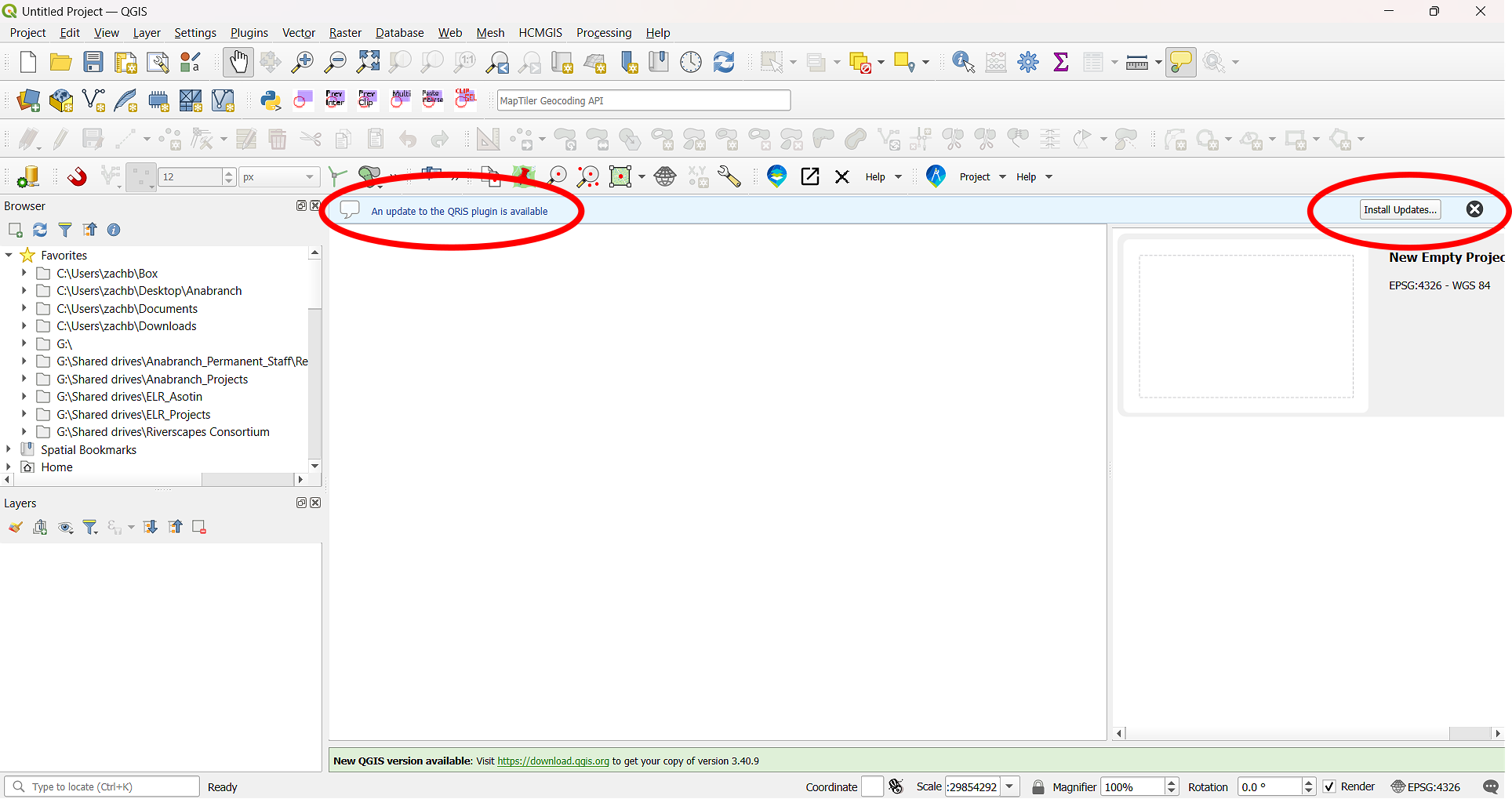
QGIS will notify you periodically (every 3 days) upon startup if any installed plugin, including QRiS, has an available update.
-
To apply the update, simply click the Update button that appears on the blue taskbar in the map panel.
Tip: To ensure you always have the latest features and improvements, regularly check for updates to QRiS and its dependencies. At the same time you update QRiS, it is a good idea to also update resources in the Riverscapes Viewer. This is where updates to symblogogy and updates to the Protocol Library.
Installing Older or Pre-Release Versions of QRiS
QGIS is constantly issuing new releases. We attempt to make QRiS forward compatible, but occasionally there are bugs that emerge from our QGIS dependencies in newer releases. If you need to install an older version of QRiS, you can do so by downloading the specific version from the QRiS GitHub Releases page.
For troubleshooting, you can have multiple instances of QGIS installed on your computer and they will all attempt to load the QRiS plugin (and other plugins) across the multiple versions. Moreover, if you uninstall one of the versions of QGIS, you will notice your plugins still appear in the other versions of QGIS.
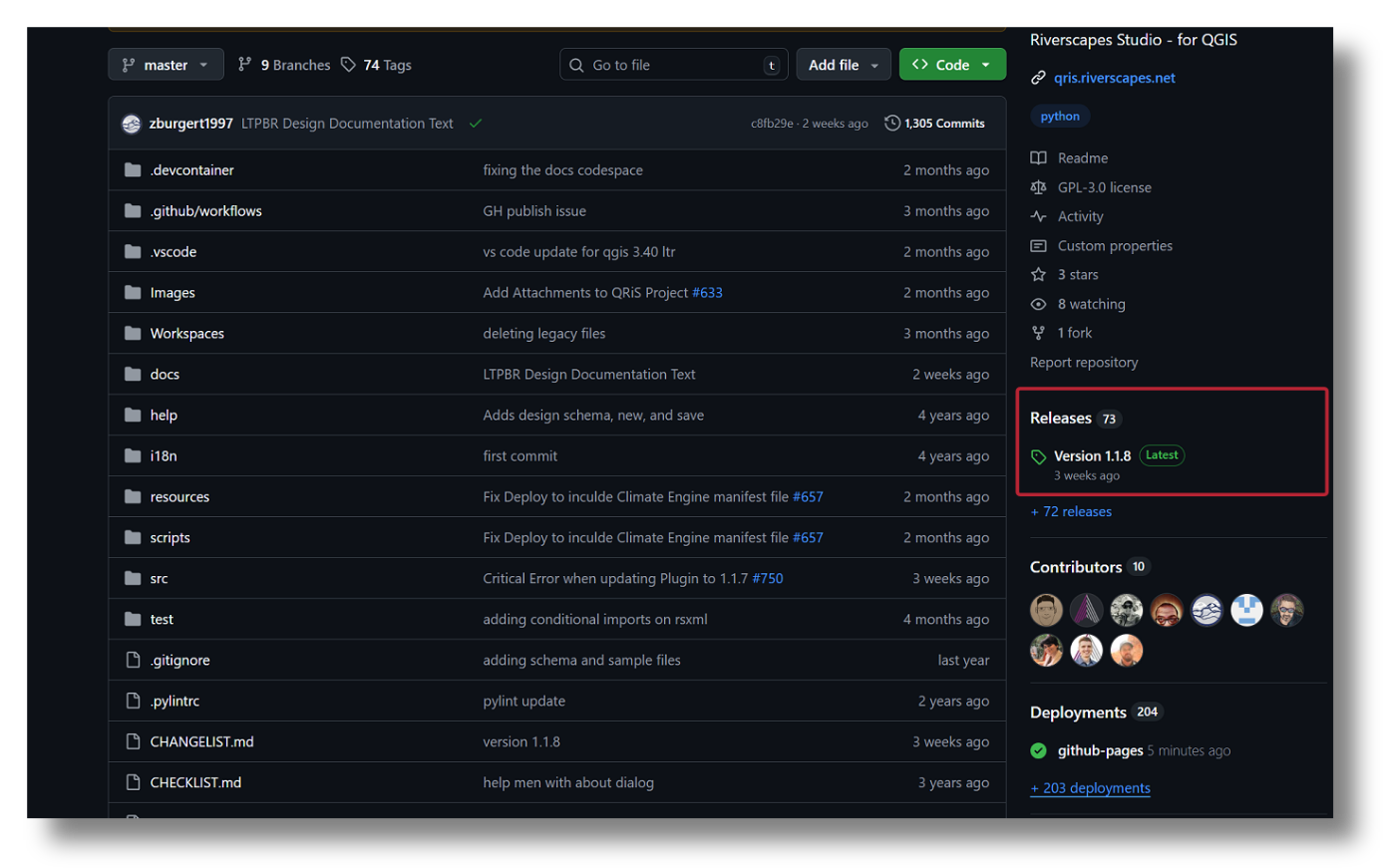
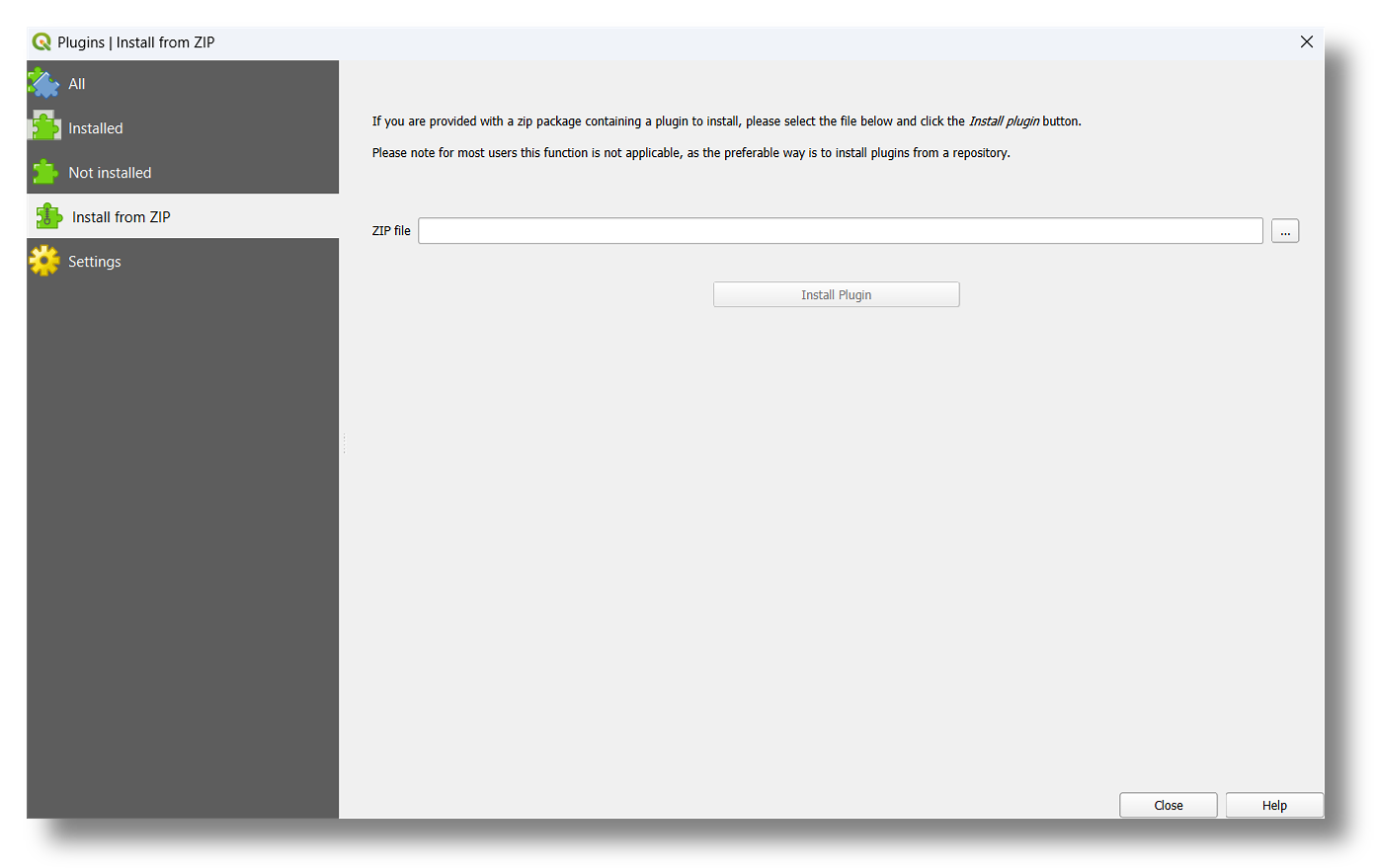
Once the version is dowloaded locally onto your device, you can install the plugin in QGIS by going to Plugins > Manage and Install Plugins > Install from ZIP and selecting the ZIP file.