Importing Features
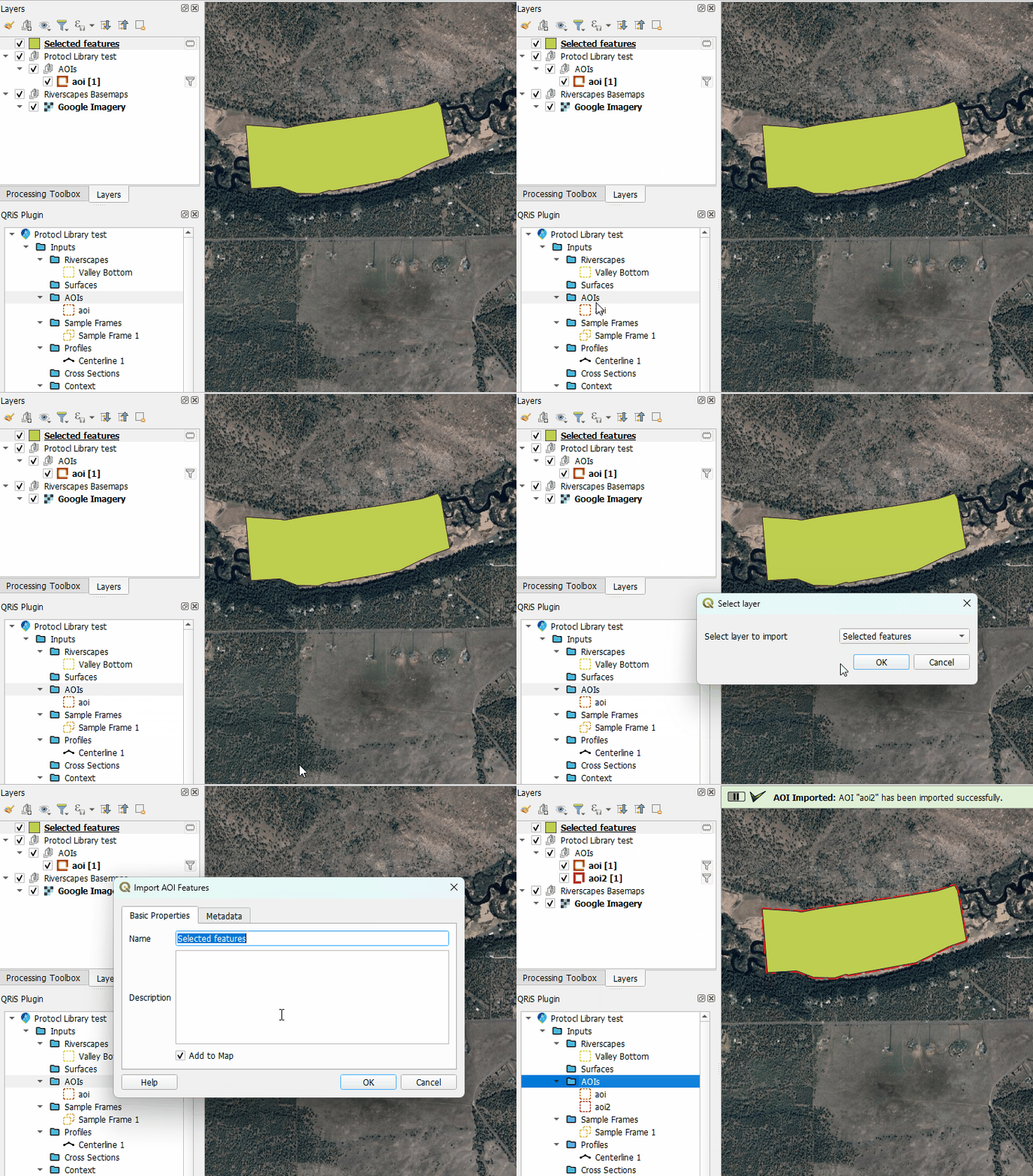
QRiS allows you to import features from an existing file or map layer into your project inputs. This tool facilitates the migration of existing data into your QRiS project structure.
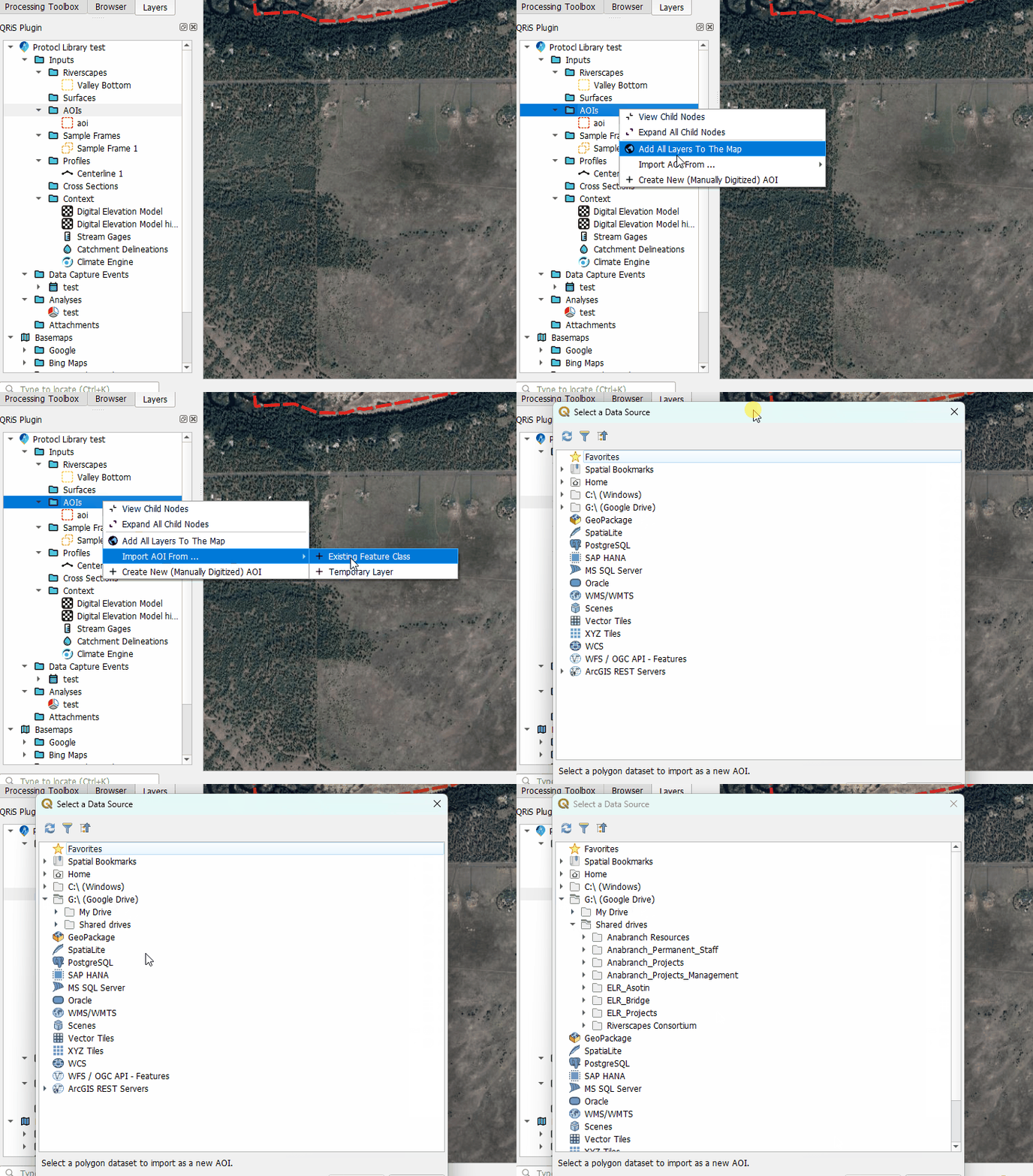
To import features as a new input layer, right click the desired Input folder in your QRiS Project Tree and select Import From..., then select one of the following options:
Existing Feature Class
A new window will pop up to select the desired feature class, filtered to the correct geometry type. Browse to the location of the feature class and click Open. You will then be able to create the new instance of the Input layer by providing a name, description and other details.
Layer in Map
This option allows you to import features from a layer that exists in your QGIS layer tree, including temporary or scratch layers.
The layers must be turned on and visible in the layer tree for QRiS to recognize them. Only layers of the same geometry type as the target input layer will be available for selection.
A new window will with a list of available layers. Select the desired layer and click OK. You will then be able to create the new instance of the Input layer by providing a name, description and other details.